
01No command
Automatic
Sensors, schedules and conditions run the response when it is needed.
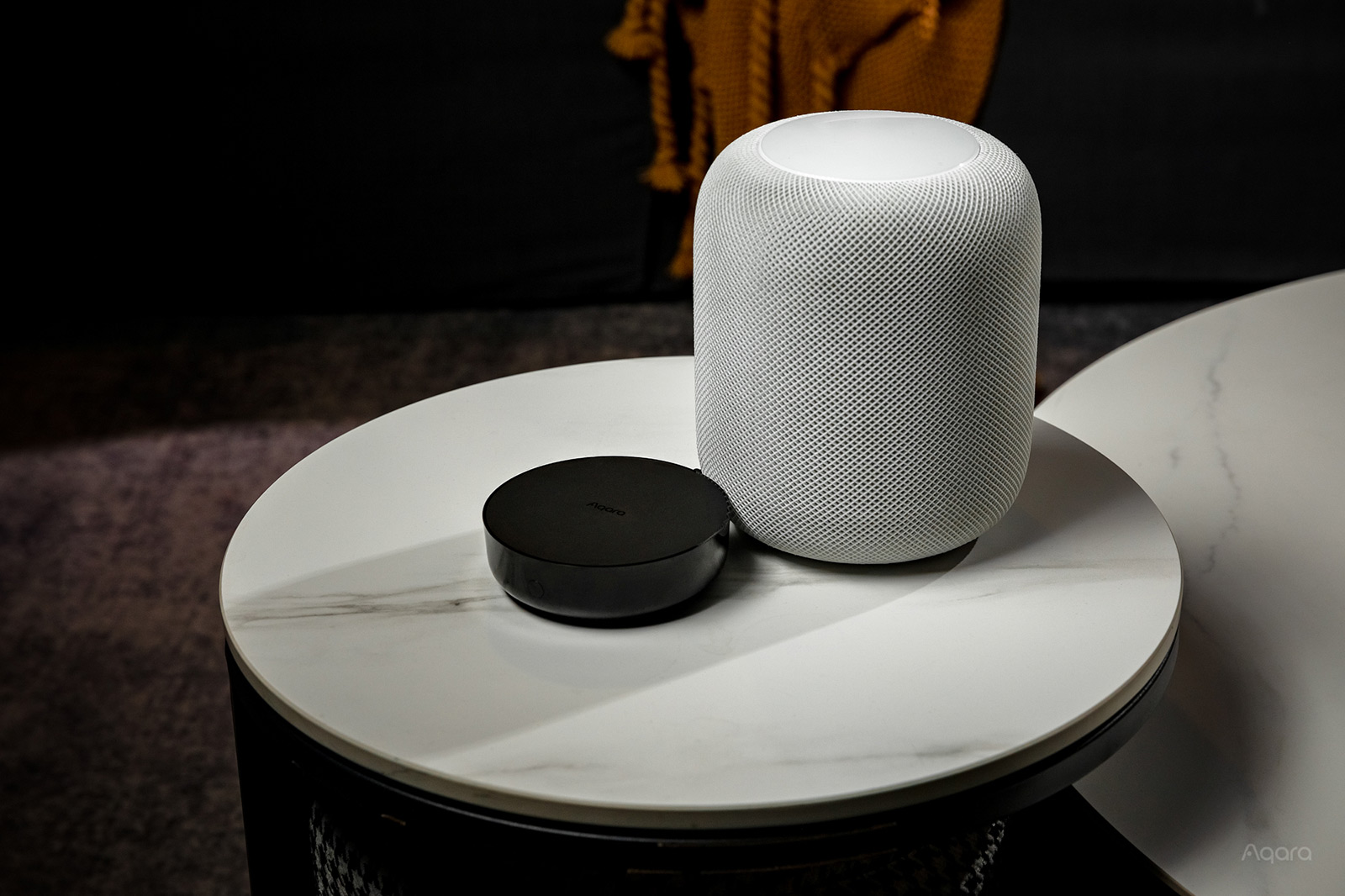
Voice, app and physical control
Control Aqara devices through Siri, Google Assistant and Alexa, from smart home apps, or with familiar wall switches and wireless controls.
Control design
Each method has a different role. Automatic control removes repetition, physical controls keep the home familiar, apps provide detail, and voice gives fast hands-free access.
Sensors, schedules and conditions run the response when it is needed.
Wall switches, panels and wireless controls provide fast, familiar access.
Control rooms, devices and scenes at home or from anywhere with a connection.
Run devices and scenes hands-free through Siri, Google Assistant or Alexa.
Voice assistants
Voice control runs through whichever platform a device is linked to, not through Aqara Home itself. Which devices, commands and status readings each assistant can reach therefore depends on the product and the platform it was added to.
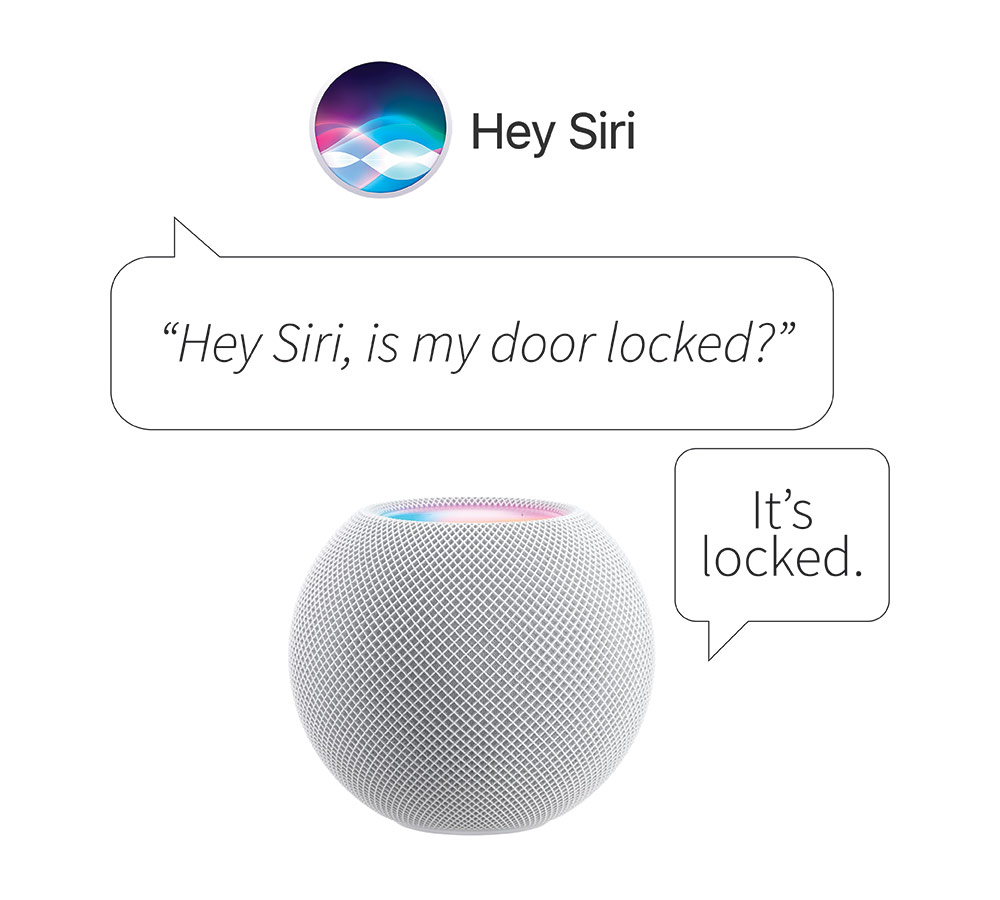
Ask Siri on an iPhone, iPad, Apple Watch or HomePod to run any Aqara accessory or scene that has been added to Apple Home.
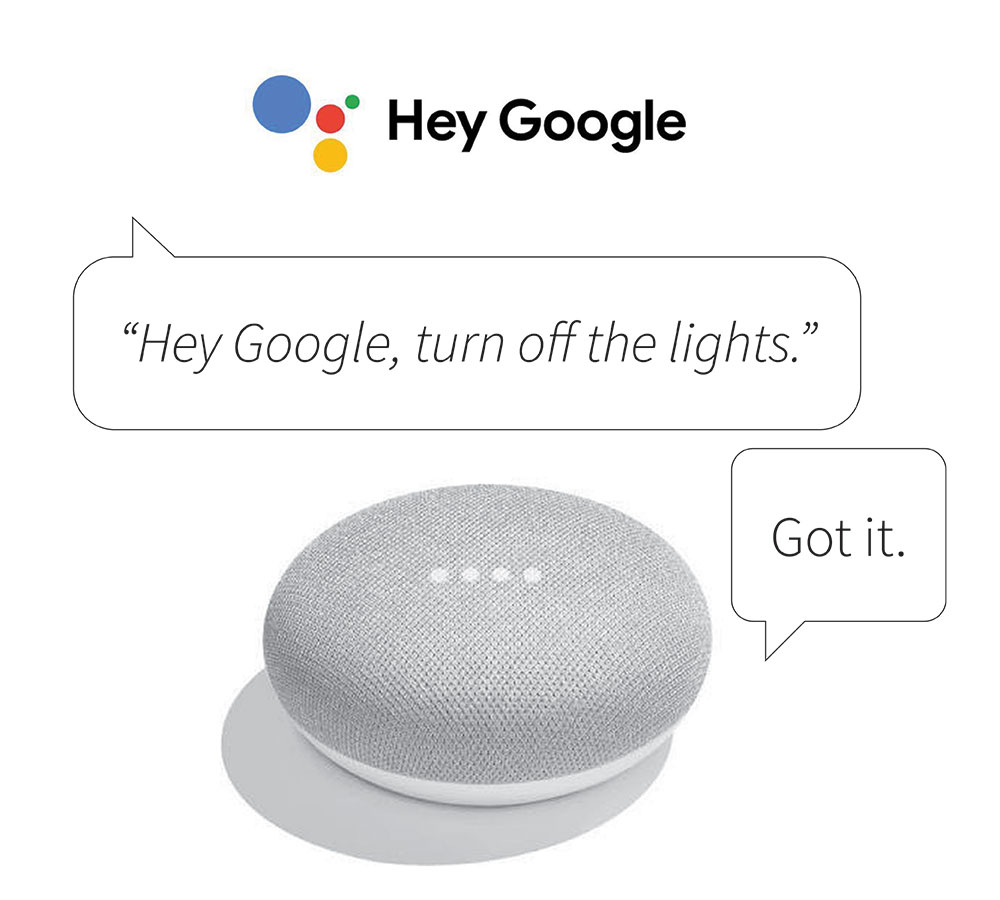
Ask Google Assistant on an Android phone, a Nest speaker or a smart display to control the devices linked to Google Home.
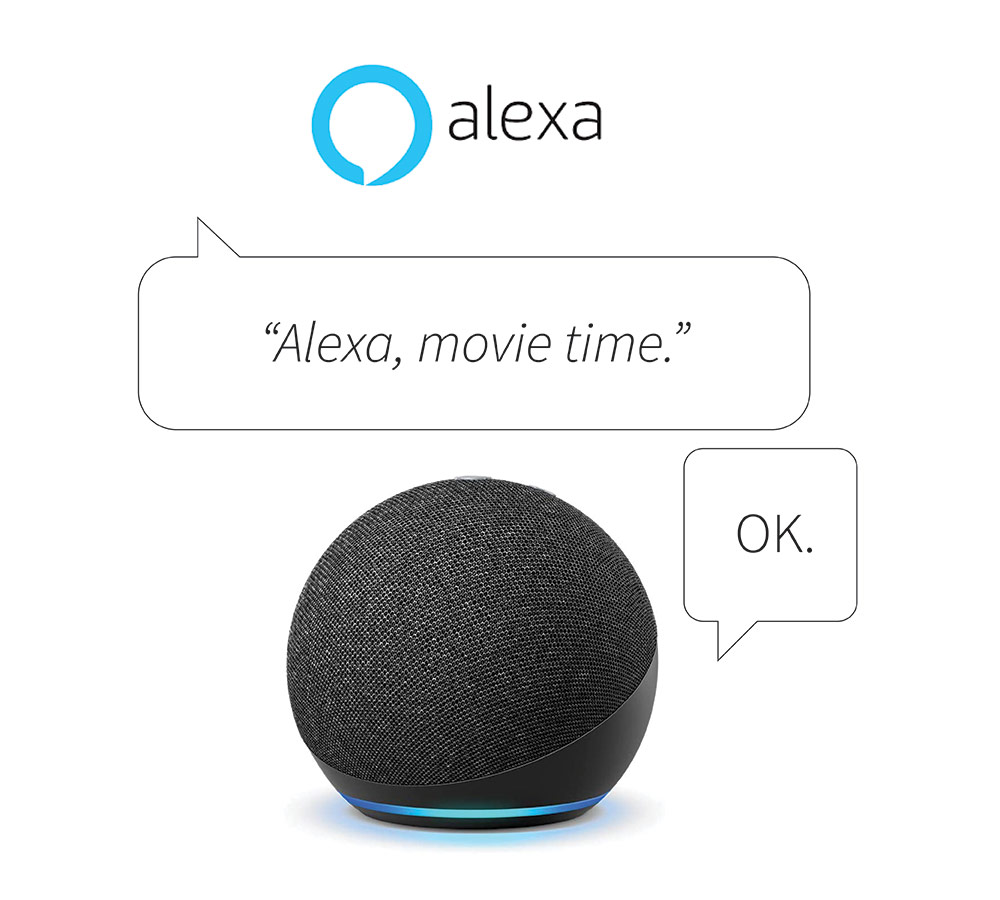
Ask Alexa through an Echo speaker, an Echo Show or the Alexa app to control devices and start routines.
Physical controls
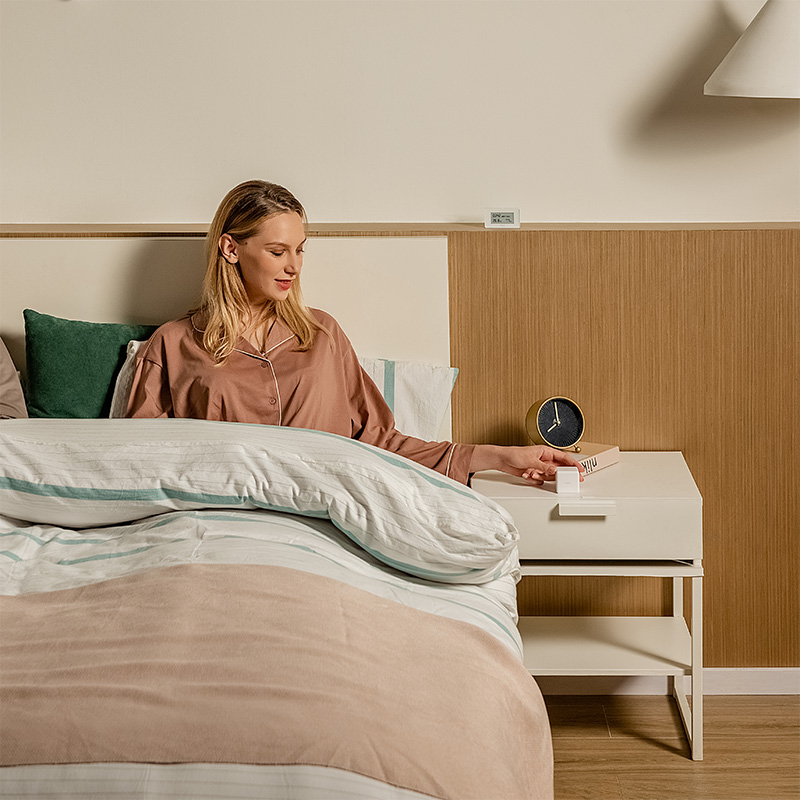
Wall switches, control panels and wireless buttons provide immediate access without opening an app or remembering a command.
They are especially important for guests, children, older family members and any high-use function such as lighting, curtains or Good Night scenes.
Read the control-planning guide to physical switches, apps and voice control for dependency and fallback checks.
Remote control
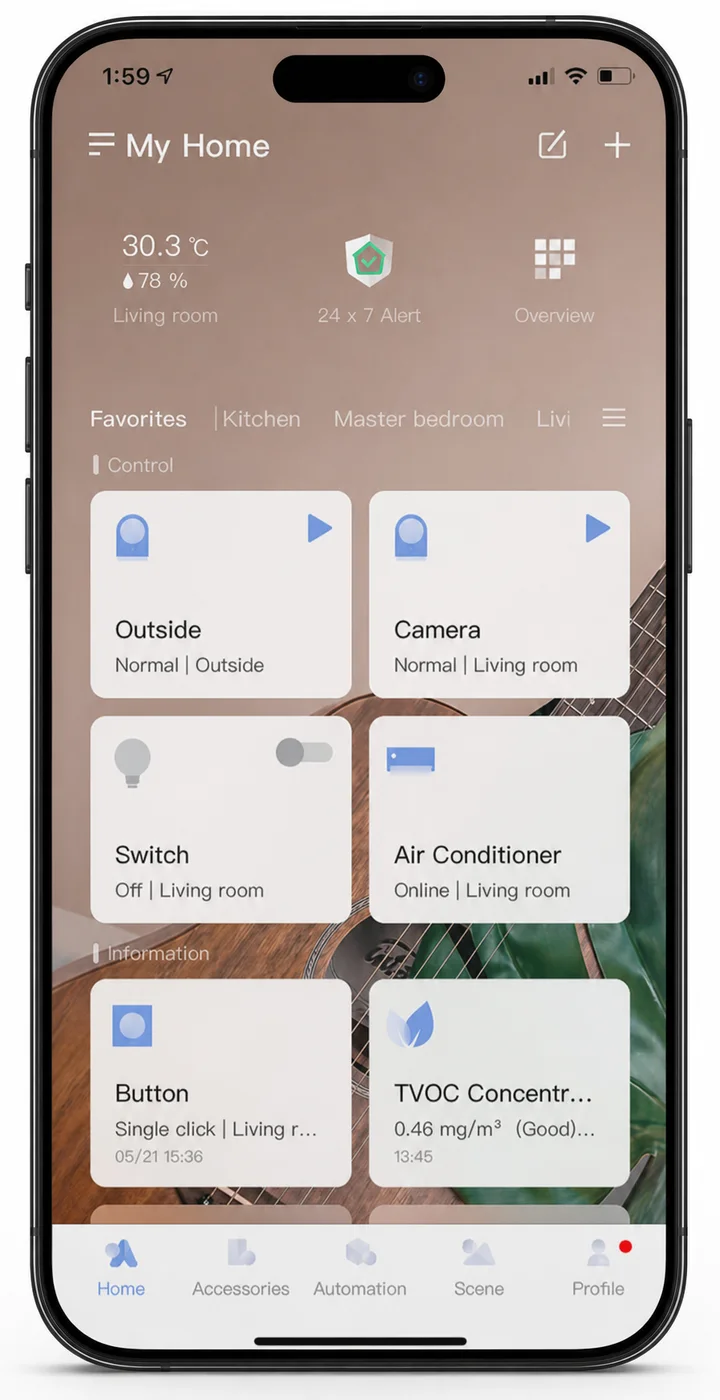
Aqara Home and the linked platforms reach the home over the internet, so everything below depends on the hub being online and the account signed in on the phone.
A practical control hierarchy
A complete system does not make every action depend on voice or a phone. It assigns each function to the most reliable and convenient control.
Remove actions that should happen consistently without a command.
Keep frequent room functions immediate and familiar.
Use apps for settings, status, remote access and detailed adjustments.
Add hands-free commands on top, for the devices and scenes that suit them.
Plan your Aqara smart home
Tell us the preferred phones, voice assistants, rooms and daily routines. We can help define the right mix of automatic, physical, app and voice control.